Laptop Ports Explained: Identify Every Port & What It Does
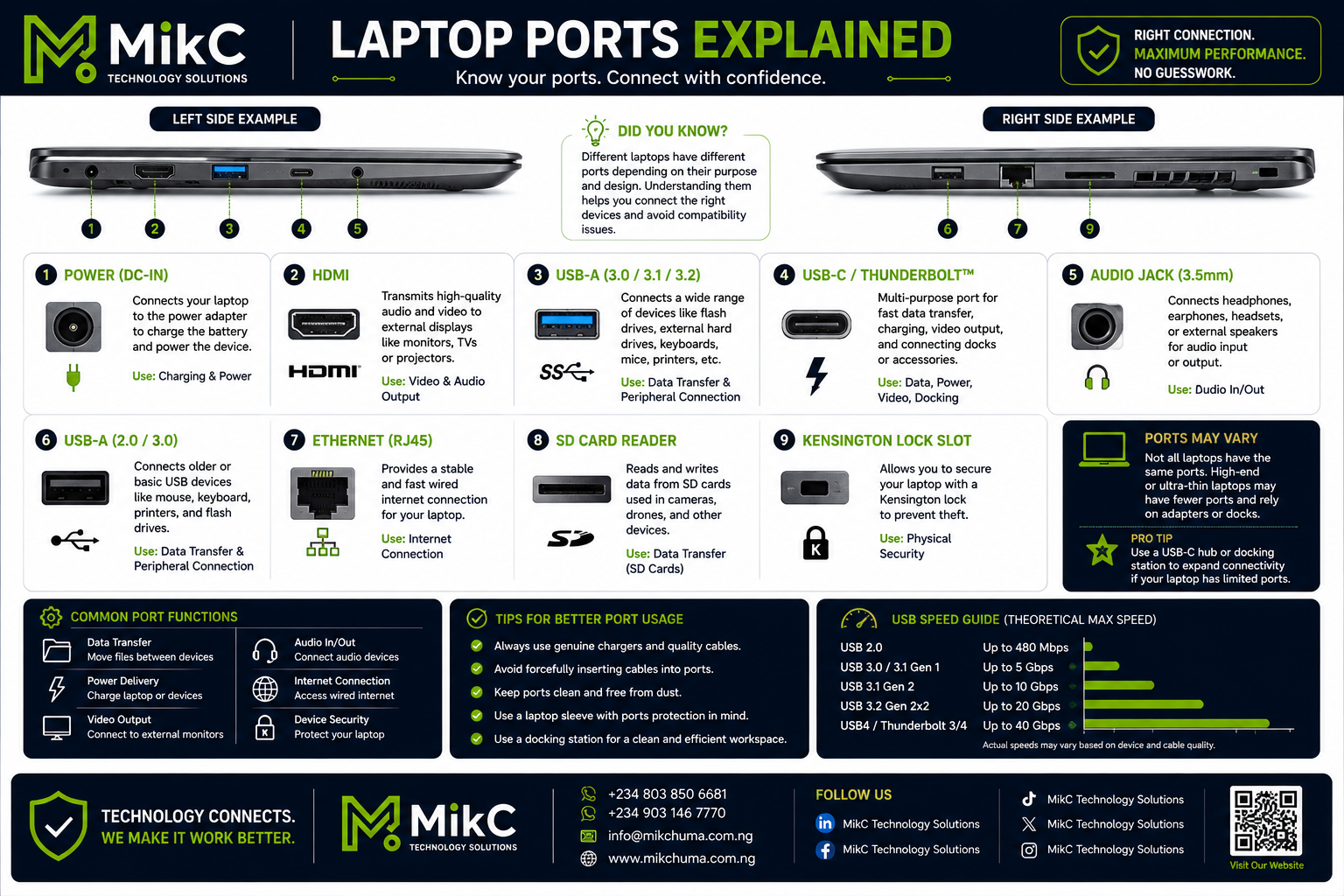
Summary: Confused by all the slots on the sides of your laptop? Learn how to identify every laptop port—USB-C, HDMI, Ethernet, SD readers—and unlock their full speed capabilities.
Modern laptops come equipped with various ports and connectors designed to link your machine to external displays, storage drives, network cables, and power adapters. Understanding what each port does helps you connect the right peripherals, prevent damage, and eliminate adapter guesswork.
Here is your complete guide to laptop ports and connectivity standards.
1. Identifying Common Laptop Ports
1. Power (DC-IN)
- Function: Connects your laptop to the dedicated power adapter to charge the internal battery and run the device.
- Primary Use: Charging & Power Delivery.
2. HDMI (High-Definition Multimedia Interface)
- Function: Transmits high-definition uncompressed audio and video signals to external screens.
- Primary Use: Connecting monitors, smart TVs, and projectors.
3. USB-A (3.0 / 3.1 / 3.2 Gen 1)
- Function: High-speed rectangular port for modern peripherals. (Often color-coded blue inside).
- Primary Use: Data transfer for flash drives, external hard drives, mice, keyboards, and printers.
4. USB-C / Thunderbolt™
- Function: Reversible multi-purpose port supporting high-speed data transfer, power delivery, display output, and dock expansion.
- Primary Use: Charging, external displays, fast data transfer, and multi-port docking stations.
5. Audio Jack (3.5mm)
- Function: Combined auxiliary jack for analog sound transmission.
- Primary Use: Connecting headphones, earphones, headsets, or external speakers for audio input/output.
6. USB-A (2.0 / 3.0)
- Function: Standard rectangular USB port found on most laptops (often black inside).
- Primary Use: Basic peripheral connections like wireless receivers, keyboards, and flash drives.
7. Ethernet (RJ45)
- Function: Accepts physical network patch cables for wired local area network access.
- Primary Use: Fast, stable wired internet connectivity.
8. SD Card Reader
- Function: Directly reads and writes memory cards used in cameras, drones, and mobile devices.
- Primary Use: Fast media transfers without needing extra card reader adapters.
9. Kensington Lock Slot
- Function: Reinforced security slot designed to connect a physical cable lock system.
- Primary Use: Physical anti-theft security in public or office environments.
2. USB Speed Comparison Guide
Not all USB ports transfer data at the same speed. Here is how standard USB generation speeds compare:
| USB Port Standard | Theoretical Max Speed | Best Use Case |
|---|---|---|
| USB 2.0 | Up to 480 Mbps | Wireless dongles, mice, keyboards |
| USB 3.0 / 3.1 Gen 1 | Up to 5 Gbps | Standard USB flash drives, HDDs |
| USB 3.1 Gen 2 | Up to 10 Gbps | Fast portable SSD drives |
| USB 3.2 Gen 2x2 | Up to 20 Gbps | High-speed external NVMe storage |
| USB4 / Thunderbolt™ 3 & 4 | Up to 40 Gbps | Dual 4K displays, eGPUs, high-speed docks |
3. Tips for Better Port Usage & Longevity
- Use Genuine Chargers & Cables: Low-quality cables can deliver erratic power or short-circuit sensitive internal motherboard controllers.
- Never Force Connectors: If a cable isn't sliding in smoothly, check orientation instead of applying force to prevent bent pins.
- Keep Ports Clean: Dust and lint accumulate in ports over time, causing loose connections. Clean gently using compressed air.
- Use a USB-C Docking Station: If your laptop has limited ports, a quality multi-port USB-C hub can expand your connections while keeping your desk organized.
Need Accessories, Docks, or Port Repairs?
Having the right port connection guarantees maximum productivity without device mismatch issues. If you need USB-C hubs, original chargers, display adapters, or port repair services for your laptop, contact MikC Technology Solutions today!